

What's changed: Initial version (topic 1.03, subtopics 1.03.1–1.03.5)
3.1Working on the Command Line
Learn interactive bash basics: shell variables vs environment variables (set, unset, export, env, echo), quoting (single, double, backquote), command history (history, .bash_history), absolute/relative paths and running commands outside PATH, and reading manuals with man.
The Linux administrator's home ground is the shell (bash by default). Beyond typing commands, understanding variables, quoting, history, and path resolution underpins every later topic (scripting, text processing).
3.1.1Shell and environment variables
- A shell variable is defined with
NAME=value(no spaces around =), valid only in that shell. Reference with$NAME, print with echo. - An environment variable is a shell variable you export; it is inherited by child processes (
export LANG=ja_JP.UTF-8). List with env (environment only) or set (everything, shell vars included); remove with unset. - Quoting: single quotes '…' keep everything literal (no expansion); double quotes "…" expand
$vars; backquotes \…\(=$(…)) perform command substitution—replaced by the command's output.
3.1.2History, path resolution, and manuals
- Command history: list with history, re-run with
!number,!!repeats the last command. History is saved to .bash_history on logout. - Commands are searched along PATH. The current directory is not on PATH by convention, so run local scripts as
./script.sh(relative path) or by absolute path. Check where you are with pwd. .(dot) and source read a script into the current shell (no new process)—used to apply config files.- man shows manuals (
man ls);man -k keyword(= apropos) finds related commands by keyword.
Staples: export to pass variables to children (plain shell vars are not inherited), single quotes do not expand, double quotes do, ./ is needed because the current dir is not on PATH, !! re-runs the last command. VAR = value (with spaces) failing is another favorite distractor.
Understand why export matters mechanically: running a command forks a child process, and only environment variables are passed down. A plain shell variable like LANG=C is invisible to the child; export LANG makes it part of the environment. Quoting is where real-world mistakes live: echo '$HOME' prints the literal $HOME, while echo "$HOME" prints /home/user01. Command substitution like FILES=$(ls *.log) is the standard way scripts capture command output (legacy backquotes are equivalent). For history, history | grep ssh excavates past complex commands, recallable with !number. For manuals: know the name → man name; only know the concept → man -k keyword.
| Syntax | Meaning | Example result |
|---|---|---|
| '$HOME' | Literal (no expansion) | Prints $HOME |
| "$HOME" | Expands variables | Prints /home/user01 |
| `date` / $(date) | Command substitution | Replaced by the date string |
| export VAR | Environment variable (inherited) | Visible to child processes |
Trap: "a shell variable is visible to child processes" is wrong—only exported environment variables are inherited. "env also lists shell variables" is wrong too—env shows environment variables only; set shows shell variables as well. And VAR = value with spaces is an error.
3.1.3Section summary
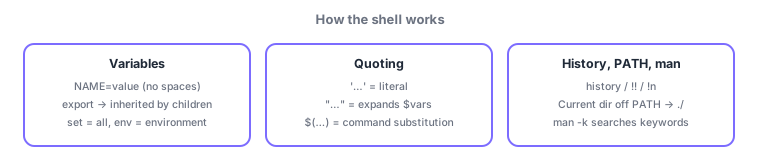
- Shell var → export → environment var (inherited); list with set (all) / env (environment), remove with unset
- '…' = literal / "…" = $-expansion / $(…) = command substitution; current dir off PATH = run with ./; history/!!; look things up with man (-k)
Sign in to track progress — Log in.
Quick check
(just a quick review)Q1. You defined MYAPP_ENV in the shell and want child processes to see it. Which command?
Q2. What does echo '$USER' print (logged in as user01)?
Q3. Running script.sh in the current directory says "command not found". How do you run it?
Keep track of your progress
The full study guide is free to read. Sign up free to practice with the question bank, track what you have read, review your mistakes, and highlight passages.