

What's changed: Initial version (topic 1.01, subtopics 1.01.1–1.01.5)
1.5Using Desktop Environments
Learn the basics of desktop environments on the X Window System (X11): the roles of the X server and X clients, the differences among display managers, window managers, and integrated desktop environments, manual startup with startx, and remote GUI via the DISPLAY variable, xauth, and X11 forwarding.
CUI dominates server work, but you will still forward GUI tools remotely or manage desktop Linux. The foundation is the X Window System (X11), with its distinctive server/client model. (This is a lower-weight, supplementary topic.)
1.5.1Components of the X Window System
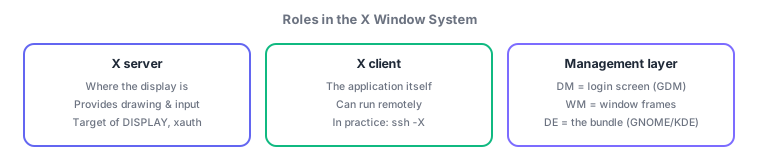
- The X server runs where the display/keyboard/mouse are, handling drawing and input. X clients are the applications themselves. X11's hallmark: where an app runs and where it displays can differ.
- A display manager provides the graphical login screen (e.g., GDM). A window manager handles window frames, movement, and stacking. An integrated desktop environment (GNOME, KDE) bundles the full desktop with applications.
- startx starts an X session manually from the console, without a display manager.
1.5.2Using GUIs remotely
- The DISPLAY variable tells an X client which X server to display on (e.g.,
DISPLAY=:0, orhost:0for remote). - xauth manages the magic cookies that authorize connections to an X server.
- In practice
ssh -X(X11 forwarding) is the staple: display remote GUI apps locally through the SSH tunnel (SSH handles DISPLAY and xauth automatically).
The seemingly inverted roles—the X server runs where the screen is; the app is the X client—are the most-tested trap. Also common: show a remote GUI app locally = ssh -X (X11 forwarding) or DISPLAY, and graphical login = display manager.
The "inverted" naming stops confusing you once you see that X11's service is drawing and input. The machine with the monitor and keyboard is the X server (it provides the display service); the GUI app running remotely is the X client (it consumes it). To use a GUI admin tool on a remote server, just connect with ssh -X admin@server01 and launch the app—the window opens on your local screen. Keep the three layers straight: the display manager (GDM) provides login, the window manager manipulates windows, and the integrated desktop environment (GNOME/KDE) bundles the whole desktop. Without a display manager, log in on the console and run startx.
| Component | Role | Examples / keywords |
|---|---|---|
| X server | Drawing/input (where the screen is) | Target of DISPLAY; authorized via xauth |
| X client | The application itself | Can run remotely |
| Display manager | Graphical login screen | GDM, etc. |
| Integrated desktop environment | Complete desktop bundle | GNOME, KDE |
Trap: "the remote machine running the GUI app is the X server" is wrong—the X server runs where things are displayed (your side). And "the display manager handles moving and stacking windows" is wrong—that is the window manager; the display manager owns the login screen.
1.5.3Section summary
- X server = screen side / X client = the app; target via DISPLAY, authorize via xauth, in practice ssh -X
- Display manager = login / window manager = windows / integrated desktop = the bundle (GNOME/KDE); manual start = startx
Sign in to track progress — Log in.
Quick check
(just a quick review)Q1. Which correctly describes the "X server" in the X Window System?
Q2. You want a GUI tool on a remote server to display on your local screen. Simplest way?
Q3. Which X Window System component provides the graphical login screen?
Keep track of your progress
The full study guide is free to read. Sign up free to practice with the question bank, track what you have read, review your mistakes, and highlight passages.