

What's changed: Initial version (topic 1.01, subtopics 1.01.1–1.01.5)
1.4Creating, Monitoring, and Terminating Processes
Learn basic process management: running jobs in the foreground/background (&, bg, fg, jobs), keeping work running after logout with nohup/screen/tmux, monitoring with top/ps/pstree/uptime/pgrep, and sending signals with kill/pkill/killall.
Run a long task while doing other work, stop a runaway process, find what is loading the box—server operations are daily process management. Master shell job control, signals, and the monitoring commands.
1.4.1Job control and surviving logout
- Append & to start in the background. Ctrl+Z suspends; resume with bg or bring back with fg. List with jobs.
- nohup keeps a command running after logout (terminal hangup = SIGHUP). The idiom is
nohup long-task &. - screen and tmux are terminal multiplexers: detach/reattach sessions at will, so work survives a dropped SSH connection.
1.4.2Monitoring and terminating with signals
- Monitor with top (live CPU/memory leaders), ps (snapshot;
ps auxis the staple), pstree (parent-child tree), and uptime (uptime and load average). - pgrep finds PIDs by name and attributes (
pgrep -u user01 nginx). - Terminate with kill (by PID), pkill (by name/attributes), killall (exact name). Default is SIGTERM (15, polite request); the last resort is SIGKILL (9, force). SIGHUP (1) means hangup / reload config.
Staples: survive logout = nohup (or screen/tmux), suspended → background = Ctrl+Z then bg, SIGTERM first, SIGKILL only if needed, find by name = pgrep/pkill, send by PID = kill. Jumping straight to kill -9 is rarely the right answer (no cleanup runs).
Walk the typical scenarios. Start long builds with nohup make all > build.log & and they survive dropped SSH. For more flexibility open a tmux session, detach with Ctrl+b d, and tmux attach later. If you suspended an editor with Ctrl+Z, check jobs and bring it back with fg %1 or push it back with bg %1. For load hunting: uptime for the load average trend, top for CPU/memory leaders, pstree to see which parent spawned it. To stop something, confirm the PID with pgrep -f app, then escalate: kill <PID> (SIGTERM) → kill -9 <PID> (SIGKILL) only if it will not die. Note killall signals every process whose name matches exactly—it can hit unintended same-name processes.
| Goal | Use | Note |
|---|---|---|
| Keep running after logout | nohup / screen / tmux | screen/tmux can reattach |
| Suspend → resume in background | Ctrl+Z → bg | fg brings it forward |
| Load overview | uptime / top | Load average → top processes |
| Graceful stop → force | kill (SIGTERM) → kill -9 (SIGKILL) | Avoid jumping to -9 |
Trap: "kill terminates a process by name" is wrong—kill takes a PID (by name is pkill/killall). And "SIGKILL (9) lets the process clean up" is wrong—SIGKILL is uncatchable and immediate; it is SIGTERM that allows cleanup.
1.4.3Section summary
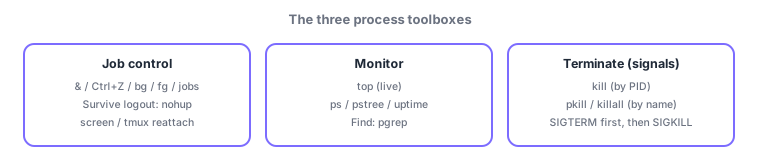
- Job control = & / Ctrl+Z / bg / fg / jobs; survive logout with nohup, screen, tmux
- Monitor = top/ps/pstree/uptime/pgrep; terminate SIGTERM → SIGKILL, by name with pkill/killall
Sign in to track progress — Log in.
Quick check
(just a quick review)Q1. You want a batch job to keep running even if the SSH connection drops. Which command?
Q2. You pressed Ctrl+Z and suspended a job. Which command resumes it in the background?
Q3. A process (PID 4321) is unresponsive. What should you try first?
Keep track of your progress
The full study guide is free to read. Sign up free to practice with the question bank, track what you have read, review your mistakes, and highlight passages.