

What's changed: Added a "Power Pages capabilities" section to Chapter 3 to match the official 6-domain PL-900 (external websites/Dataverse integration/external-user auth/role split vs Power Apps + figure, table, scenario, FAQ, traps, quiz).
3.1Power Automate Capabilities
Understand automating repetitive work with Power Automate (triggers and actions) and the difference between cloud flows (automated/instant/scheduled) and desktop flows (RPA).
Power Automate automates repetitive work into workflows. In Power Platform it plays the "automate" role.
3.1.1Triggers and actions
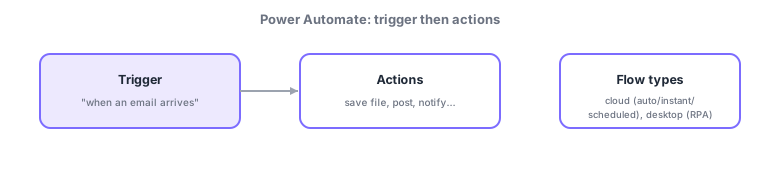
- Trigger: what starts a flow (e.g., email received, a time, a button press); one per flow.
- Action: the steps run after the trigger (save file, notify, approve, update data); operate external services via connectors.
- Cloud flows: three kinds—automated (event), instant (manual/button), scheduled (timed).
- Desktop flows: RPA (robotic process automation) records and automates UI actions of legacy apps without APIs.
Power Automate plays "automate" in Power Platform; a flow is always "a trigger (one start condition) + actions (the subsequent steps)." Cloud flows automate via connector APIs and come in three kinds by start: automated / instant / scheduled. For legacy systems with no API or UI-only operation, desktop flows (RPA) help—recording and replaying the steps a person performs on screen. Actions operate Microsoft 365 and SaaS via connectors and are also called as the backend of Power Apps and Copilot Studio.
| Flow type | Started by | Example |
|---|---|---|
| Automated cloud flow | An event | Log on email arrival |
| Instant cloud flow | Manual (button) | Send notice on button |
| Scheduled cloud flow | A schedule | Daily morning report |
| Desktop flow (RPA) | Recorded UI actions | Data entry in legacy apps |
Scenario: automating invoice intake. Build a cloud flow: "when an invoice email arrives (automated trigger) → save the attachment to SharePoint → request approval → record in Dataverse." For posting into a legacy accounting app with no API, automate the UI with a desktop flow (RPA). Run monthly rollups via a scheduled flow. Triggers + actions automate routine work.
Watch the mix-ups: (1) Flow = one trigger + multiple actions. (2) Cloud flows (via API; automated/instant/scheduled) vs desktop flows (RPA; UI actions)—use RPA when there’s no API. (3) Power Automate is "automate," distinct from Copilot Studio (conversation) and Power Apps (apps), though they integrate.
Q. Cloud vs desktop flow? Cloud flows automate services via connectors (APIs); desktop flows use RPA to automate UI actions (for apps without APIs). Q. Automated/instant/scheduled? Differ by start: event / manual button / timer. Q. Power Automate’s role? "Automate" in Power Platform.
Common: flow = trigger + actions, cloud flows (automated/instant/scheduled), desktop flows = RPA (UI actions, for apps without APIs). Power Automate plays the "automate" role.
3.1.2Section summary
- Flow = trigger (one start) + actions (multiple steps)
- Cloud flows (automated/instant/scheduled) / desktop flows (RPA, UI actions)
- Power Automate is the "automate" role in Power Platform
Sign in to track progress — Log in.
Quick check
(just a quick review)Q1. What starts a Power Automate flow?
Q2. Which Power Automate capability automates legacy apps by recording UI actions?
Q3. What is Power Automate’s main role within Power Platform?
Keep track of your progress
The full study guide is free to read. Sign up free to practice with the question bank, track what you have read, review your mistakes, and highlight passages.